
The best way to preserve and safeguard your User data is to maintain regular backups of ALL CompuHost datafiles (*.tps) .
To do this, simply copy ALL (*.tps) files found in the CompuHost Program Folder (Default: (Windows 32bit) C:\Program Files\CompuHost or (Windows 64bit) C:\Program Files (x86)\CompuHost) onto a backup media (flashdrive etc.).
In the event that a reinstall is necessary, you may then simply copy the backup datafiles back into the new installation, overwriting the originals.
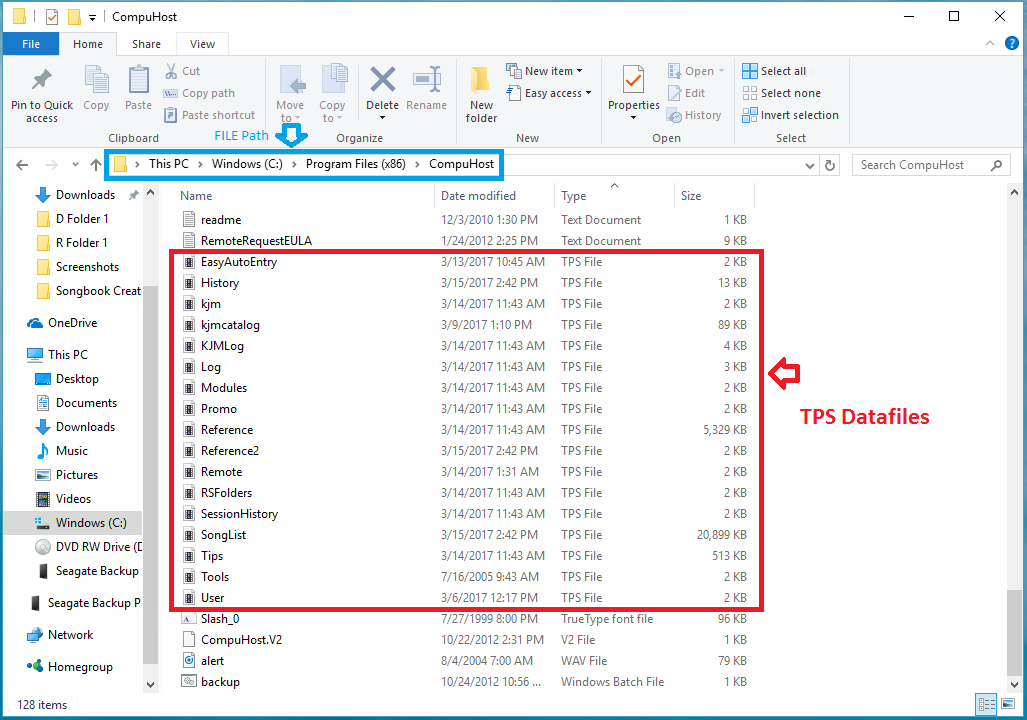
Instructions:
- (Windows 7) "Select" the START button (Windows 10) “Select" the File Explorer folder
- (Windows 7) "Select" Computer (Windows 10) MyPC:
- Open the C: Drive
- Open (windows 32 bit) Program Files or (windows 64 bit) Program Files(x86)
- Open CompuHost (CompuHost Programs Folder)
- Locate and Copy All (*.tps) files into a new folder or onto a backup media (flashdrive etc.)
Examples: History.tps, SongList.tps
Reminder: In the event that a reinstall is necessary, you can then simply copy the backup datafiles back into the new installation, overwriting the originals.