
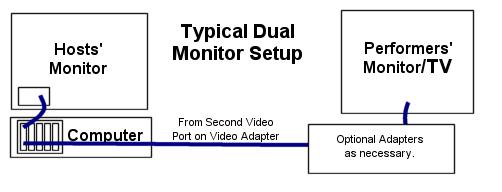
NOTE: Be sure CompuHost is closed/shutdown before configuring your Windows Extended Desktop
- Once you have all of the physical components properly connected, "Right Click" anywhere in an open space on your desktop
- Select Display Settings
- Be sure "under the topic" System -> that you have selected Display
- Under the topic"Multiple Displays" select the drop down arrow and select Extend these Displays
- Select Apply
------------------------------------------ Customize your Display (Windows10) ---------------------------------

NOTE: Once properly configured, open CompuHost and the Secondary "lyrics" Screen will be displayed on the Secondary Monitor/TV, while CompuHost's main menu will remain on your Primary Desktop