Some valued CompuHost users, utilizing potentially errant hardware devices and/or device drivers (Intel Video Device etc.) have reported a significant improvement after completing the process outlined below...
1. Inspect Your Computer for a Malware Infection.
If any of your software is heavily infected with malware, it can corrupt your memory systems which can cause this error to pop up. If you’ve noticed your computer acting up before getting an access violation at address error, such as unprovoked alerts or fake browser windows, then a detailed and deep scan should be done. If you’re just using the built-in antivirus software and it doesn’t find anything, you may want to try another option to see if a malware infection was missed. Getting rid of the malware will solve the issue.
2. Add CompuHost to your Exception Access List.
If you have no malware on your computer, you can add CompuHost to a data execution prevention exception list. This will allow CompuHost to run despite the error code. Here is how to do this.
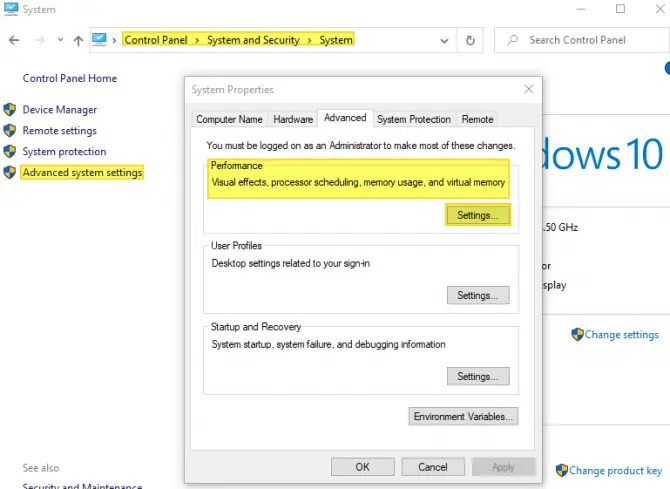
- In your computer’s search bar, type in “control panel” and open it.
- You’ll want the system choice here.
- Click into system and security.
- In the system menu, click on the advanced system settings.
- In the advanced tab, find the performance section and hit settings.
- Across the top, click onto the data executive prevention tab.
- The section option will allow you to turn on data execution prevention for all programs and services except those that you choose.
- Click the add button and find CompuHost's executable file (Default: C:\Program Files (x86)\CompuHost\CompuHost.exe).
- Add it to the list, hit apply, and then okay to save the changes.