
Are you experiencing significant delays at times while launching Karaoke performances or playback within the DJ/FillerTunes Console?
Delays such as this are most likely attributed to the time it takes for CompuHost to physically gain access to, and open the associated song file on the attached storage device. Most often, users experiencing delayed playback are also utilizing plugin USB storage devices, infamous for powering down "falling asleep" at the most inopportune times, most notably right in the middle of your show! If the storage device is powered down at the time, CompuHost has no choice but to WAIT for the device to power back up (potentially several seconds) before it can gain access to the song file for playback. To hopefully resolve, or at least significantly improve the delay, you may wish to try disabling "USB Selective Suspend" and reset your harddrive "power down" settings...
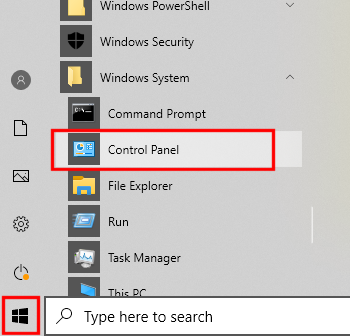
- Open Control Panel (Windows Start->Windows System->Control Panel)
- Click on Hardware and Sound.
- Click on Power Options.
-
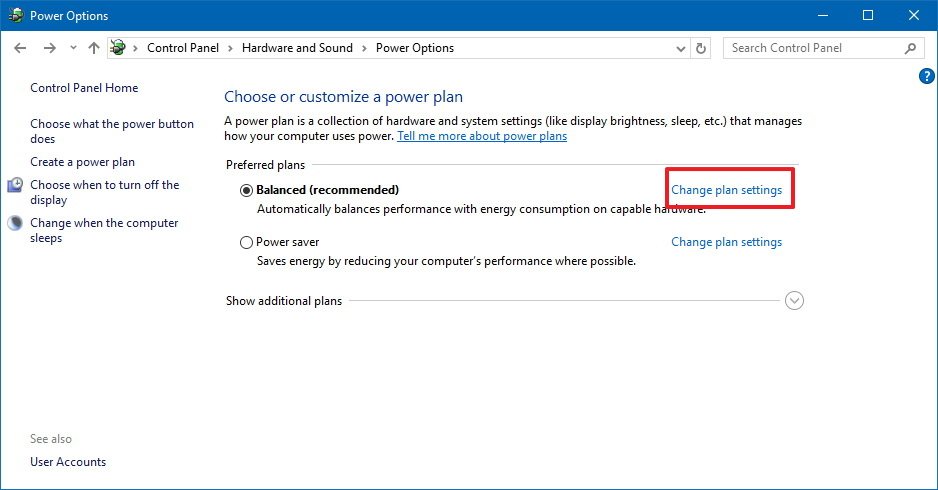
Under "Preferred plan," click the Change plan settings link for the plan you're currently using. (If you change the settings on the power plan that isn't active, this won't work.)

-
Click the Change advanced power settings link.

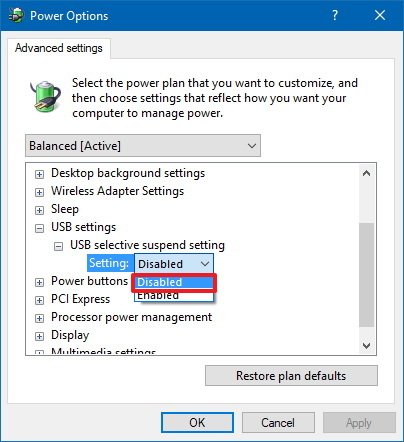
- Expand USB settings.
- Expand USB selective suspend setting.
-
Select Disabled from the drop-down menu.

-
Next, to ensure your attached harddrives do NOT power down (fall asleep) during your show(s) and further induce significant delays on playback...

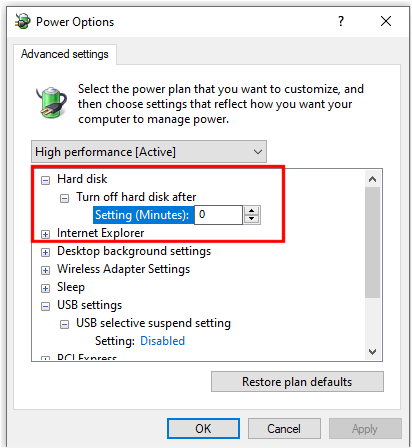
- Expand "Hard disk"
- Here you will see the required settings under Turn off hard disk after heading. Change the value to 0
- Click Apply.
- Click OK.