In Windows 10, while attempting to install one of our industry leading software products, you might get a dialog stating “The app you are trying to install isn’t a verified app from the Store. Installing apps from the Store helps protect your PC and keep it running smoothly”.
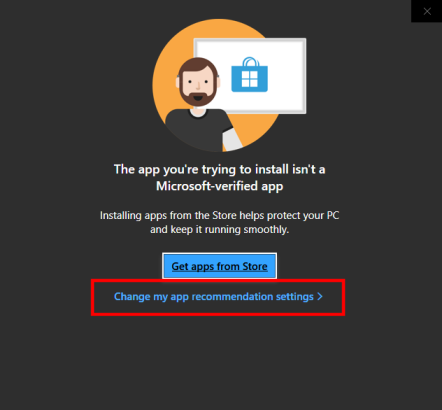
We feel this is just another misleading attempt for Microsoft to extort revenue, whereby in order to circumvent this message, we, as well as other providers, must agree (and pay) to distribute our products only through the Microsoft owned and managed APP Store.
To disable these notifications and enable you to rightfully download and install applications from well-known and reputable providers, you may do so by...
- Select the link within the notification labeled "Change my app recommendations settings" (see image above), or if the link is not available, in the lower Windows Search bar (to the right of the Windows Start button), type in "Apps & features" and select "Apps & features - System settings" from the search results.
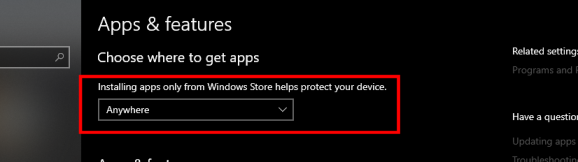
- From the "Choose where to get apps" drop-down selections, select "Anywhere" (see important reminder below).
IMPORTANT REMINDER: As always, when downloading and installing applications onto your computer, it's imperative that you take adequate precautions (up to date Viurs protection etc.), but most importantly ensure the source/provider is known to be reputable and trustworthy. Do NOT download files of ANY kind from sources known to distribute WAREZ or otherwise pirated/stolen content, you're just asking for trouble!